

Microsoft PowerToys is an open-source set of utilities designed for advanced users who want to optimize their Windows experience.
This toolkit offers various features to enhance productivity and customize the operating system.
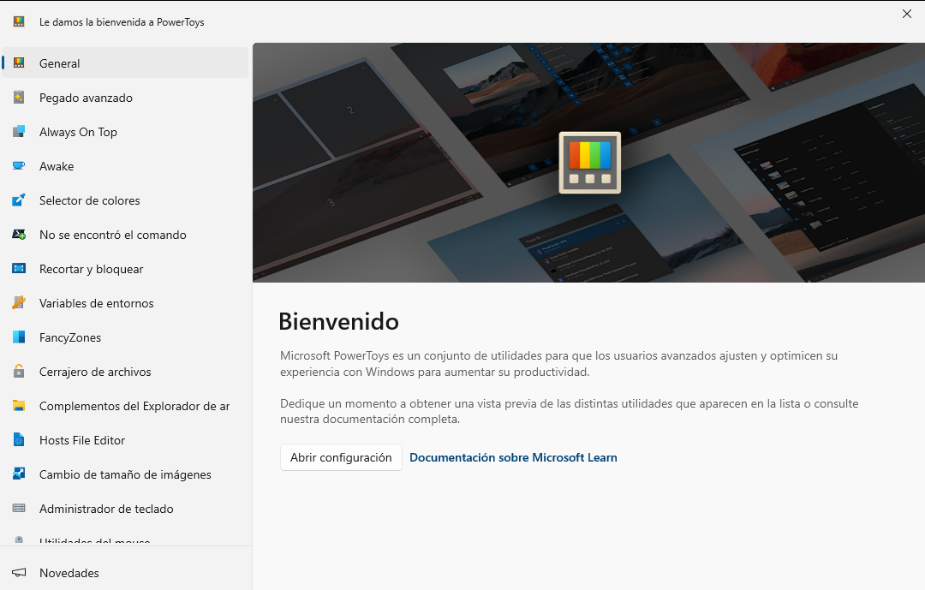
Since its first appearance in Windows 95, PowerToys has evolved significantly, incorporating innovative features that allow for more detailed control of the work environment.
Let’s take a look at how to make the most of these tools at work.
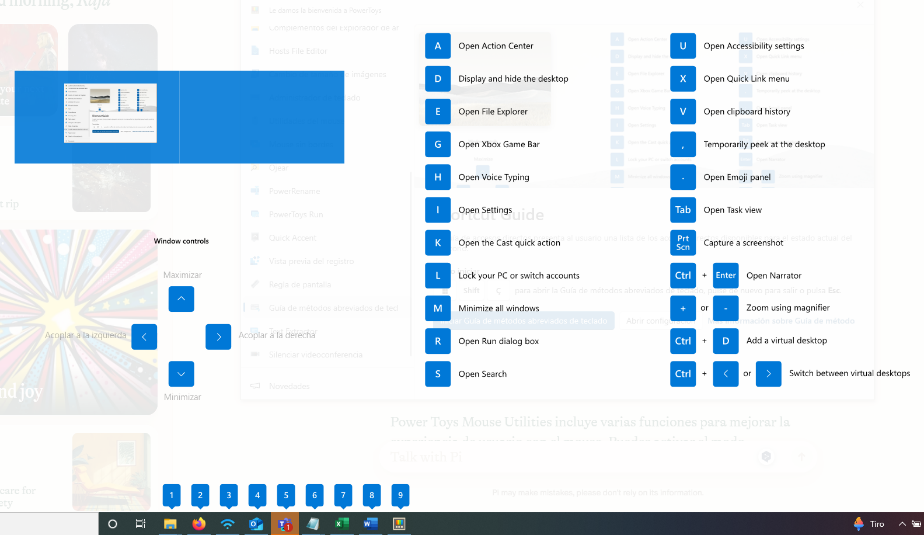
One of the most notable utilities in Microsoft PowerToys is the Keyboard Shortcut Guide. This tool provides a quick visualization of all keyboard shortcuts available in Windows and specific applications.
By simply pressing Win + Shift + ç or from its menu in PowerToys, you can see a complete list of shortcuts, making navigation and efficient use of the operating system and various programs much easier.
The Keyboard Manager, on the other hand, is a tool that allows for the customization of keyboard shortcuts. It lets you remap keys according to specific user needs, which is especially useful for frequently used applications or personal key mapping preferences.
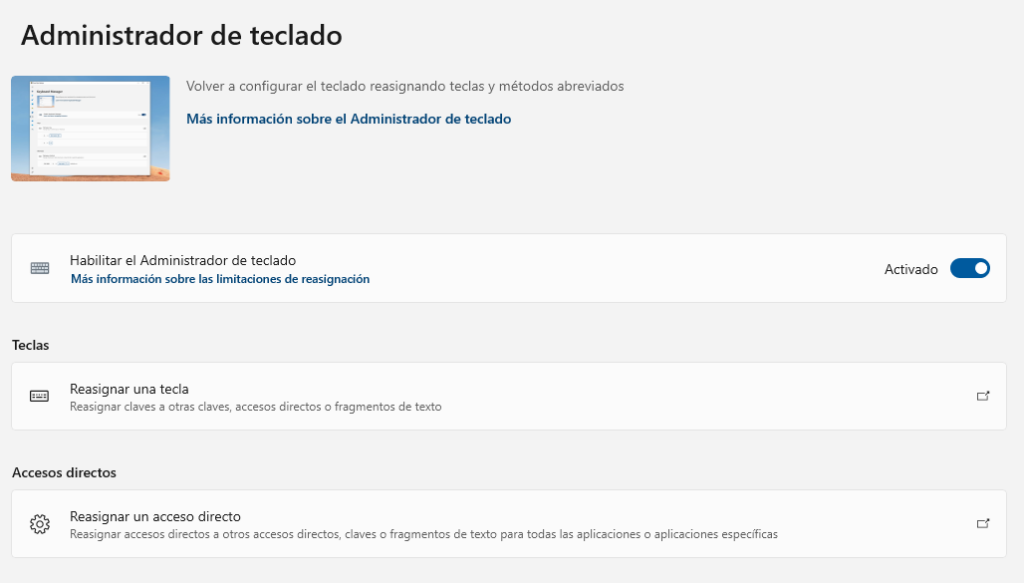
Additionally, this tool can serve as an alternative for typing accented characters or special symbols, streamlining writing and editing tasks.
FancyZones allows users to organize windows into different layouts on the desktop. This feature is particularly useful for those who work with multiple applications simultaneously, such as developers or data analysts.
With FancyZones, you can define specific areas on the screen to place applications and resize windows quickly and easily. To access it quickly, press Win + Shift + ñ.
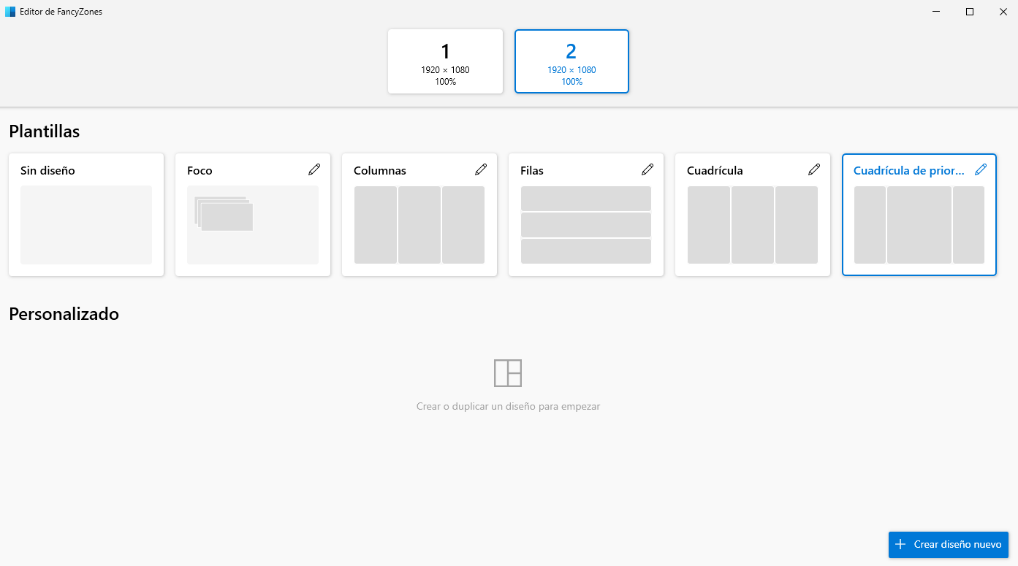
This tool not only improves organization but also reduces the time spent manually adjusting windows, thereby increasing productivity. It also allows for custom configurations that adapt to different types of work, whether for programming, graphic design, or file management.
PowerToys Run is a quick launcher that makes it easy to open files and applications, as well as execute Windows shell commands.
By pressing Alt + Space, a search bar is activated that allows you to quickly find and open any installed application, document, or system setting.
It also supports plugins, meaning its functionality can be expanded to include registry searches, mathematical calculations, and more.
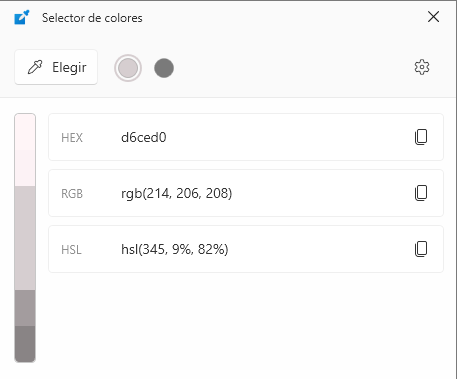
The Color Picker is another highly useful utility, especially for designers and web developers.
This tool allows you to capture and copy the color code from any part of the screen, making it easier to select precise colors for graphic design or coding.
By simply pressing Win + Shift + c, the Color Picker activates, displaying the color under the cursor and its corresponding code in hexadecimal, RGB, or HSL format.
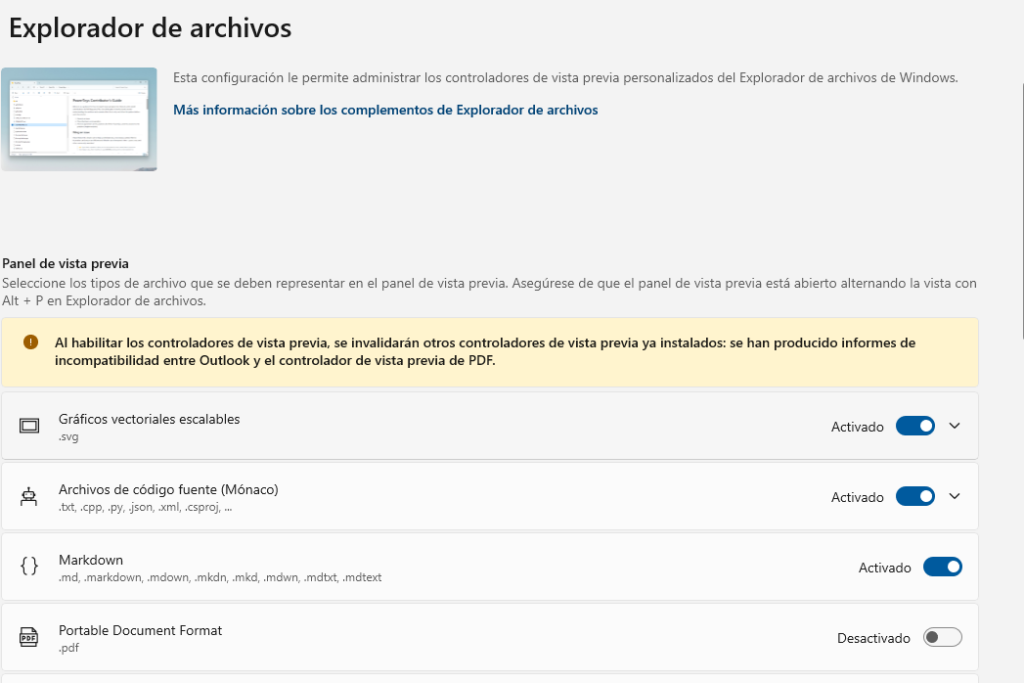
PowerToys also includes several useful add-ons for the Windows File Explorer. Among them is the option to preview additional file types such as Markdown, SVG, or PDF files, allowing quick and easy viewing without opening extra programs.
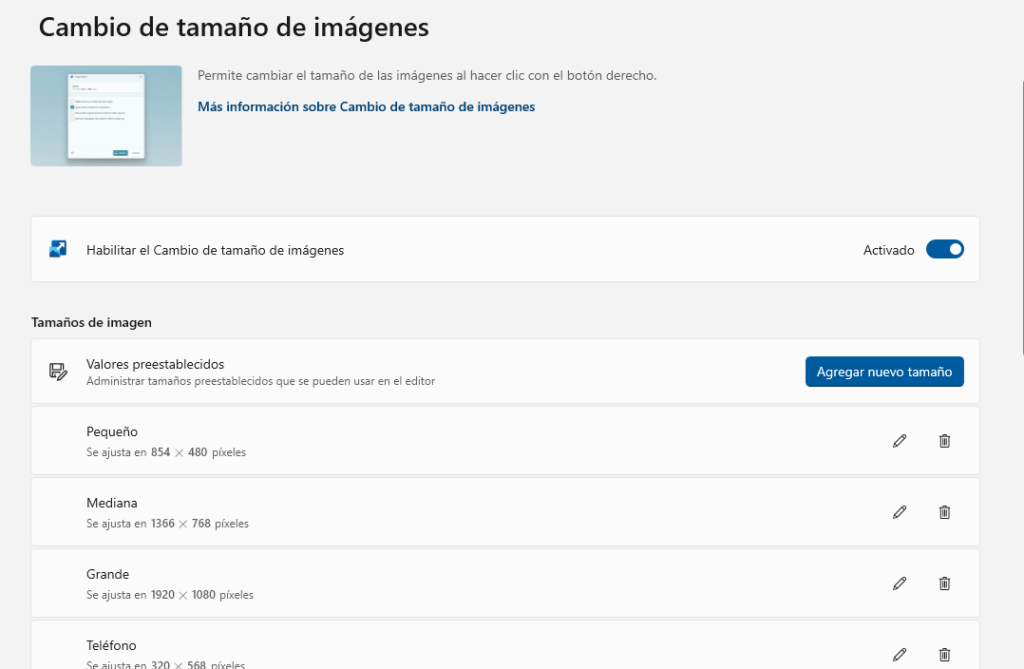
Another interesting tool is the Image Resizer utility. As its name suggests, this function allows you to resize one or more images at once directly from the File Explorer context menu, supporting multiple formats and size configurations.
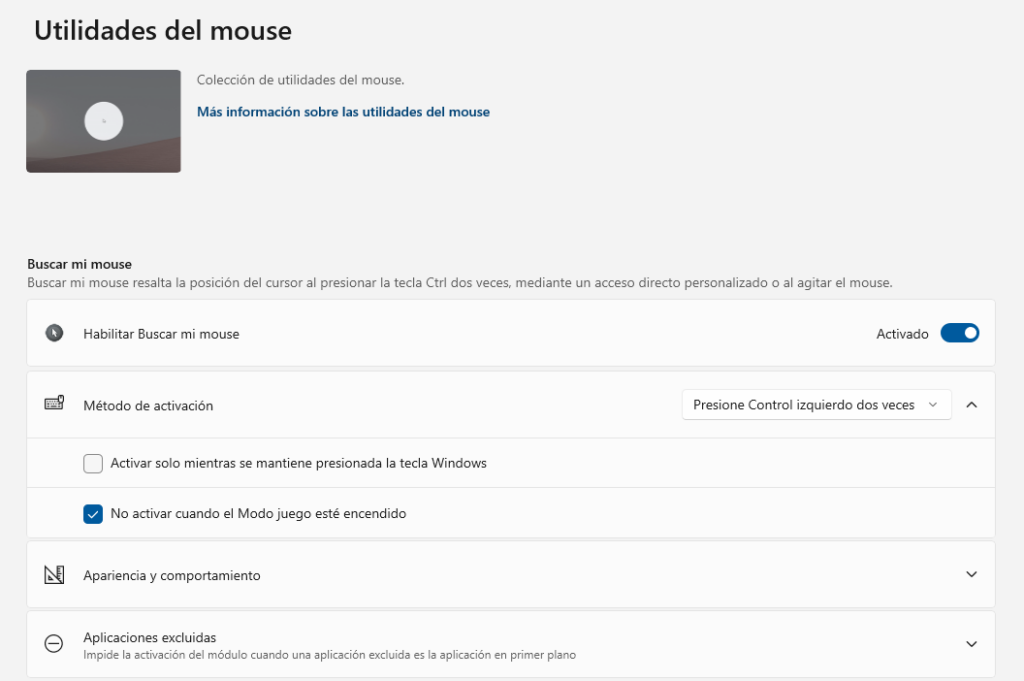
The Mouse Utilities included in PowerToys, such as “Find My Mouse,” are especially useful for those who use multiple monitors or high-resolution setups, as they help quickly locate the mouse cursor.
To make the most of these utilities, you first need to download and install PowerToys.
The fastest option is through the Microsoft Store by searching for PowerToys.
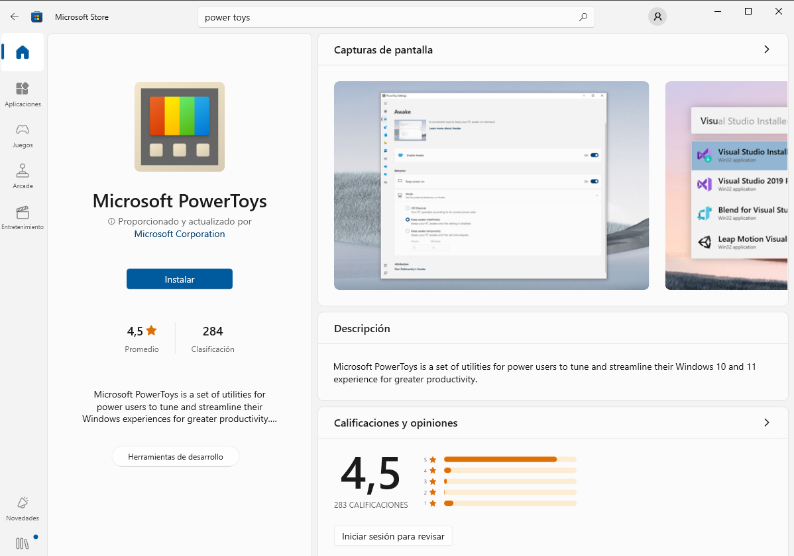
But it’s also possible to get the latest version from the official GitHub repository, which also includes detailed installation and usage instructions.
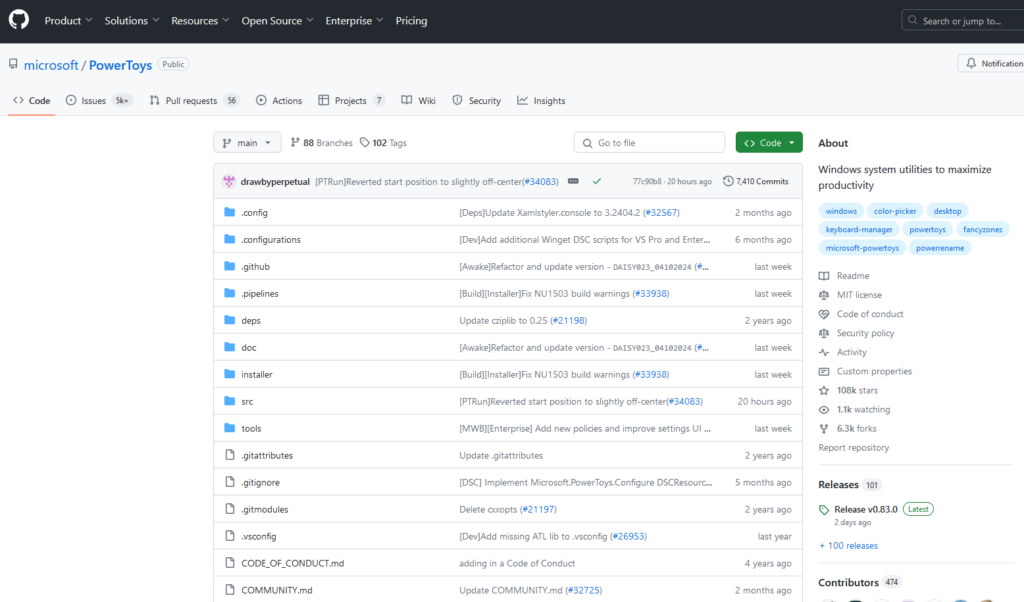
As you can see, PowerToys offers a wide variety of tools and functions that can help you customize and optimize your Windows system.
Since it’s an open-source project, anyone can also contribute to developing new features or improving existing ones.
The possibilities offered by this tool are truly immense. So, if you haven’t already, download and install this suite of tools and start transforming the way you work within Windows! Staying up to date with digital skills, as well as other soft skills, is essential to maintain a competitive professional profile.


.jpg)
.jpg)
