

Microsoft PowerToys is a suite of open-source utilities designed for advanced users who wish to optimise your Windows experience.
This suite of tools offers a range of functions for to improve productivity and customise the operating system.
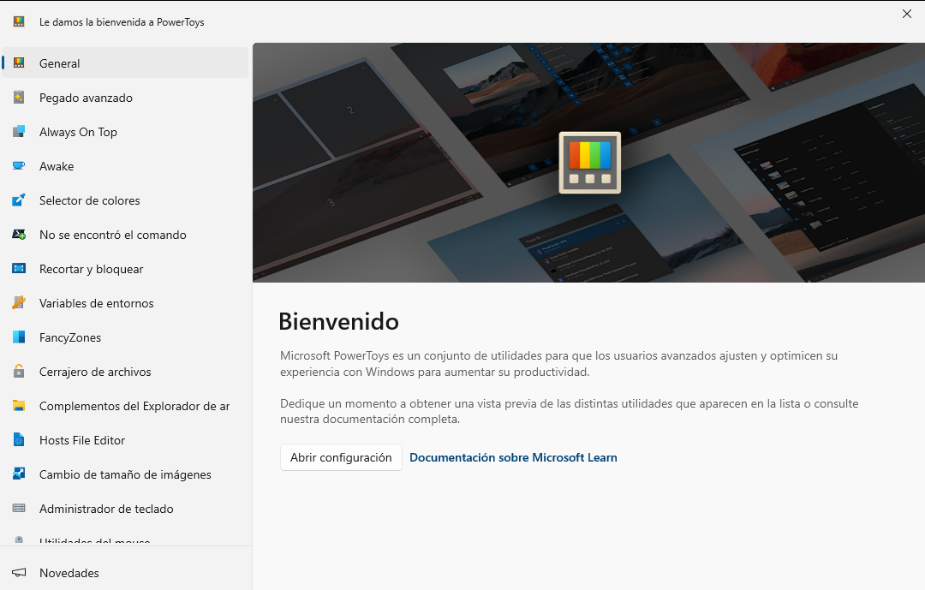
From its very first introduction in Windows 95, PowerToys has evolved significantly, incorporating innovative features that allow for more detailed control over the working environment.
Let’s now look at how to make the most of these tools at work.
Keyboard Shortcuts Guide and Keyboard Manager
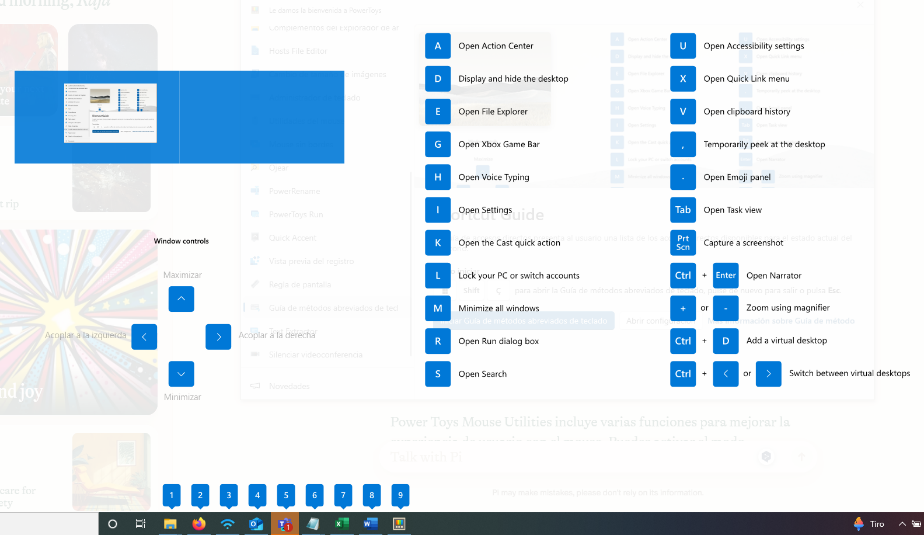
One of the most notable features of Microsoft PowerToys is the Guide to keyboard shortcuts. This tool provides a quick overview of all the keyboard shortcuts available in Windows and specific applications.
Simply by pressing Win + Shift + ç Or, from the PowerToys menu, you can view a complete list of shortcuts, which makes it easier to navigate and use the operating system and various programmes efficiently.
The Keyboard Manager, on the other hand, is a tool that enables the customising keyboard shortcuts. It allows you to remap keys to suit your specific needs, a feature that is particularly useful for frequently used applications or personal key-mapping preferences.
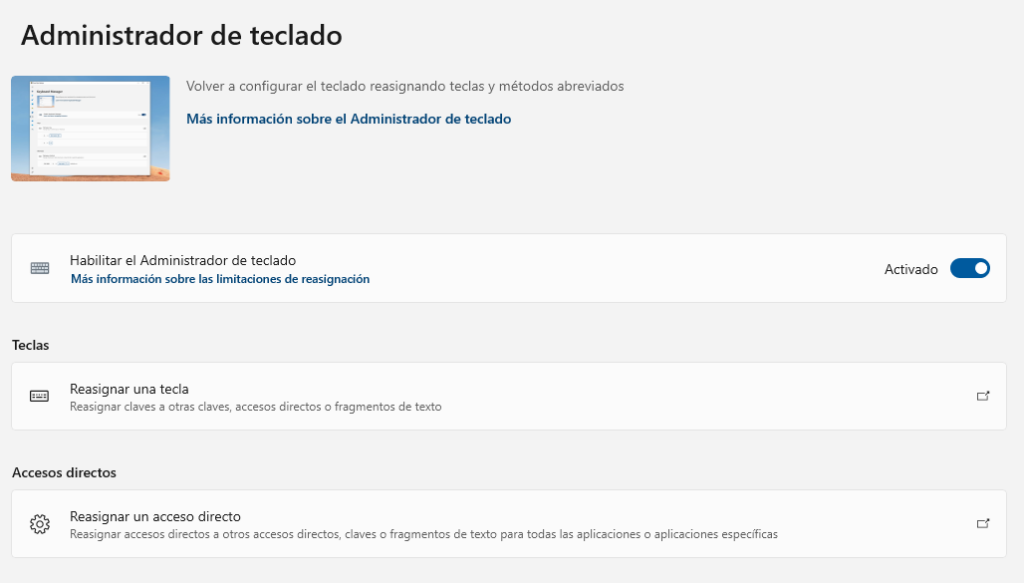
Furthermore, this tool can serve as an alternative to typing accented characters or special symbols, streamlining writing and editing tasks.
FancyZones
FancyZones allows arrange windows in different layouts on the desktop. This feature is particularly useful for users who work with multiple applications simultaneously, such as developers or data analysts.
With FancyZones, it’s possible to define specific areas on the screen to position applications and resize windows quickly and easily. To access it quickly, simply click Win + Shift + ñ.
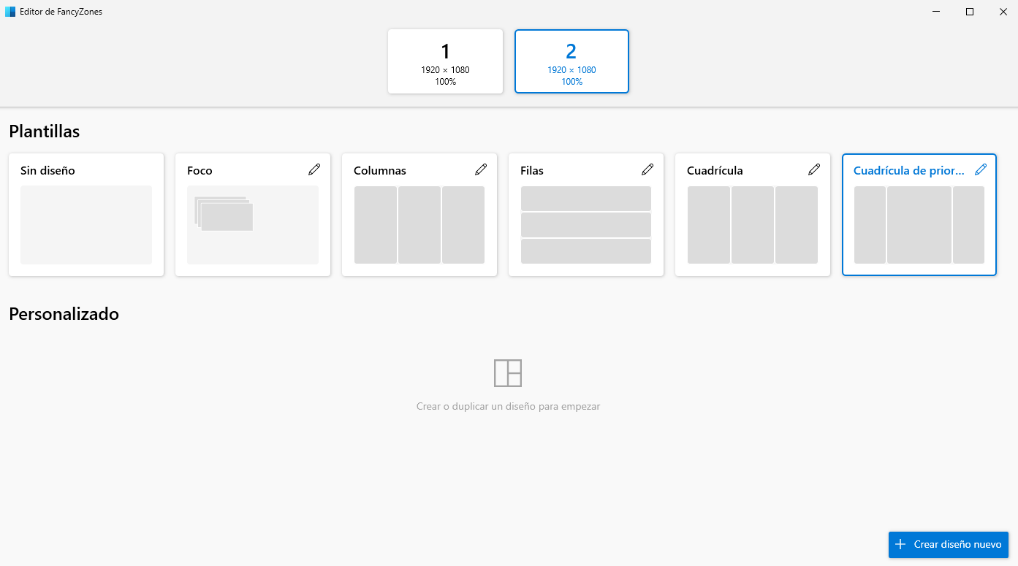
This tool not only improves organisation, but also reduces the time spent manually adjusting windows, thereby increasing productivity. Furthermore, it allows you to create custom settings which are suited to different types of work, whether it be programming, graphic design or file management.
PowerToys Run
PowerToys Run is a fast bowler which makes it easier to open files and applications, as well as run Windows shell commands.
When you press Alt + Space, a search bar appears, allowing you to quickly search for and open any installed apps, documents or system settings.
It also supports plugins, which means that its functionality can be expanded to include searches within the register, mathematical calculations, and other features.
Colour Picker
The Colour Picker It’s another tool that can be very useful, especially for web designers and developers.
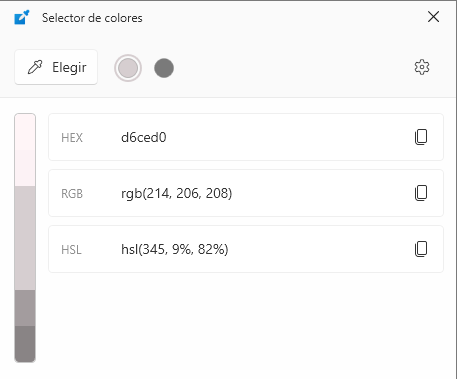
This tool allows you to capture and copy the colour code from any part of the screen, which makes it easier to select colours accurately for graphic design or programming.
Simply by pressing Win + Shift + c, the Colour Picker is activated, displaying the colour under the cursor and its corresponding code in hexadecimal, RGB or HSL format.
File Explorer add-ons and resizing images
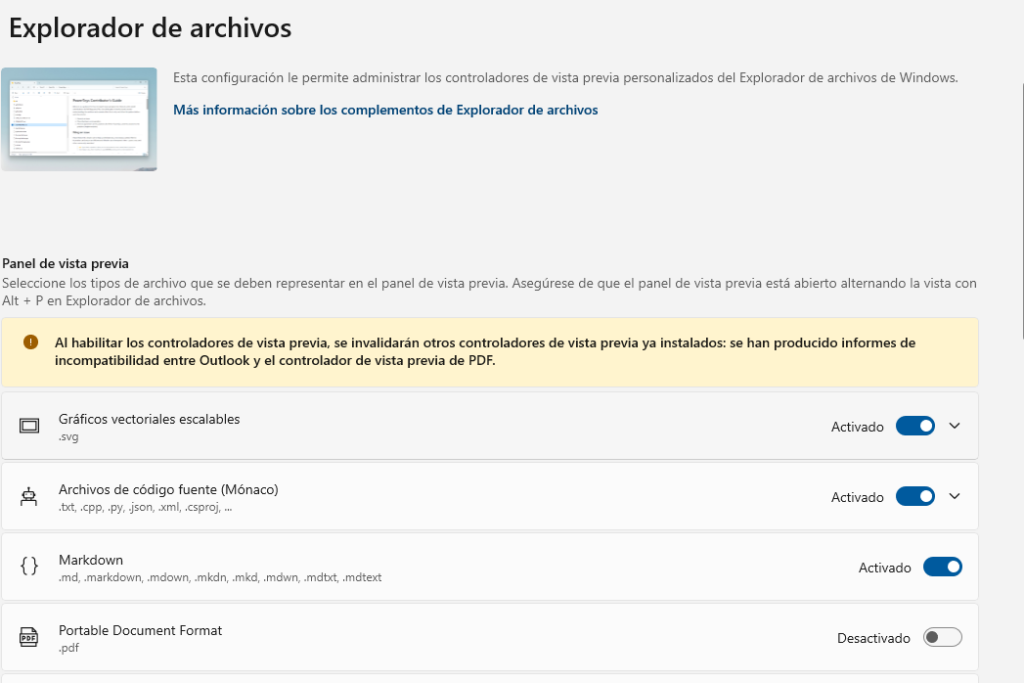
PowerToys also includes several useful add-ons for the Windows File Explorer. These include the option to preview additional file types such as Markdown, SVG or PDF files, allowing you to view these file types quickly and easily without having to open any additional programmes.
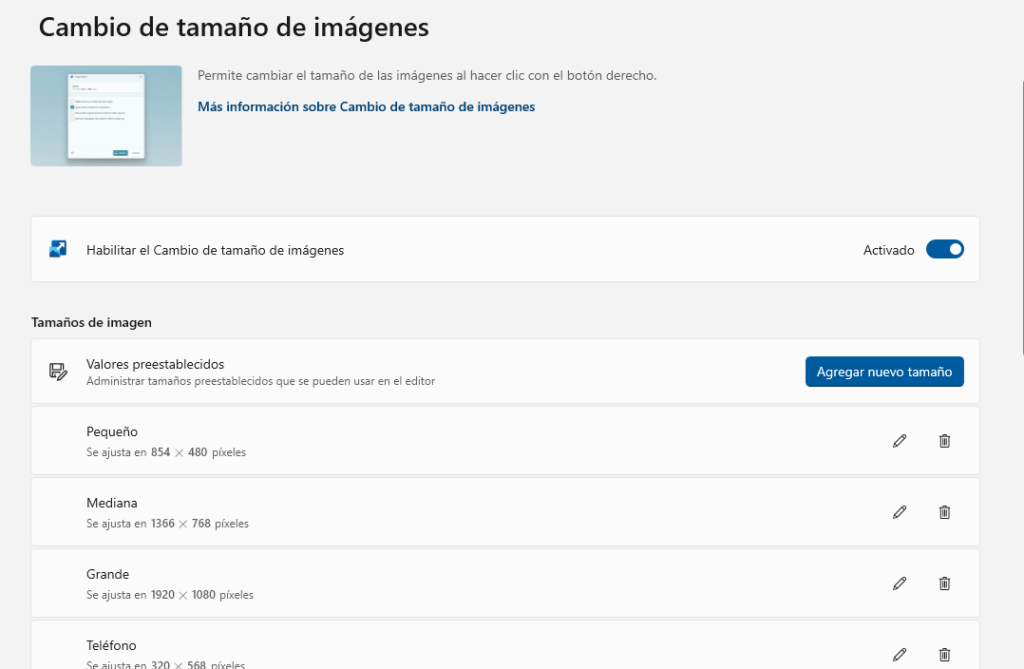
Another interesting tool is the utility for Resizing images. As the name suggests, this function allows you to resize one or more images at once directly from the File Explorer context menu, supporting multiple formats and size settings.
Uses of the mouse
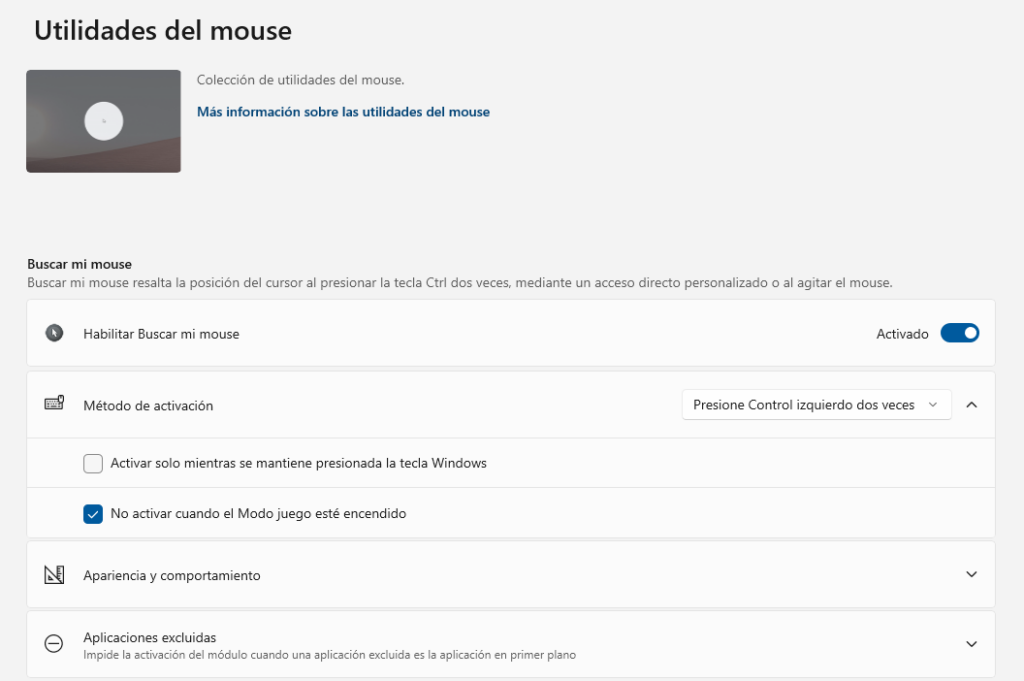
The Uses of the mouse Those included in PowerToys, such as «Find My Mouse», are particularly useful for those who use multiple monitors or high-resolution setups, as they help you quickly locate the mouse cursor.
So how do I download and install PowerToys?
To get the most out of these features, you first need to Download and install PowerToys.
The quickest way is via the Microsoft Store searching for Power Toys.
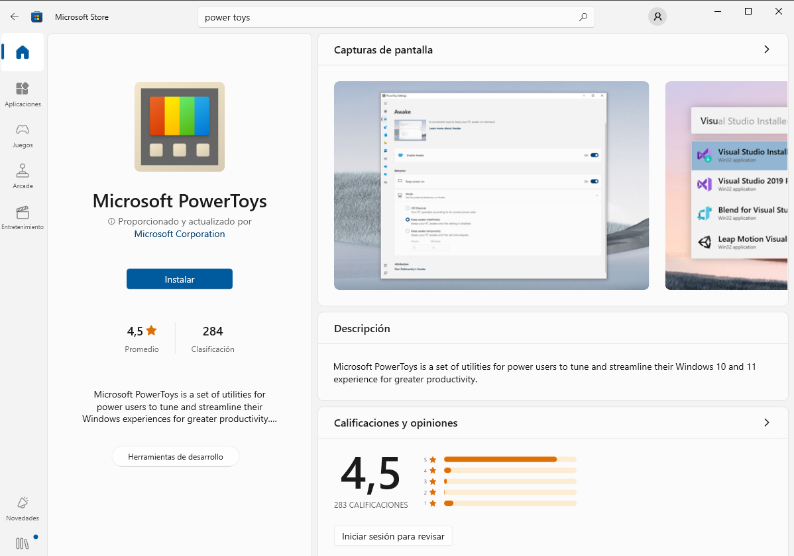
But it is also possible to download the latest version from the official GitHub repository, which also includes detailed instructions on installation and use.
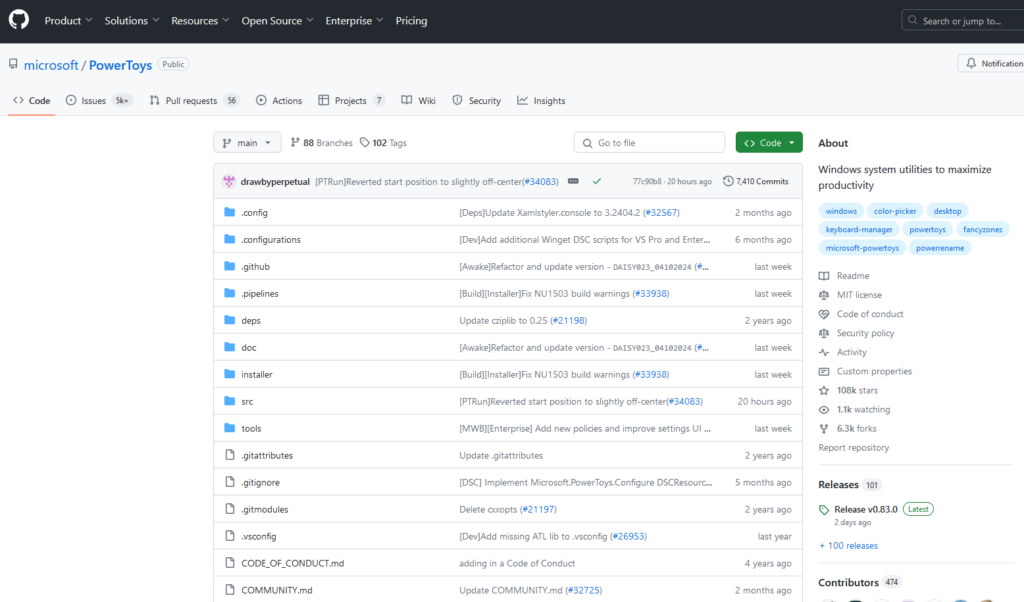
PowerToys, the Swiss Army knife for Windows
As you’ve seen, PowerToys offers a wide range of tools and features that can help you customise and optimise your Windows system.
Given that it is a open-source project, anyone can also contribute to the development of new features or improve existing ones.
The possibilities offered by this tool really are endless. So, if you haven’t already done so, download and install this suite of tools and start transforming the way you work in Windows! Keeping up to date with digital skills, just as with the rest of soft skills, it is essential for maintaining a professional profile.